 Whole Scroll
- Home
- Tech Column
- Dual-pane & sticky
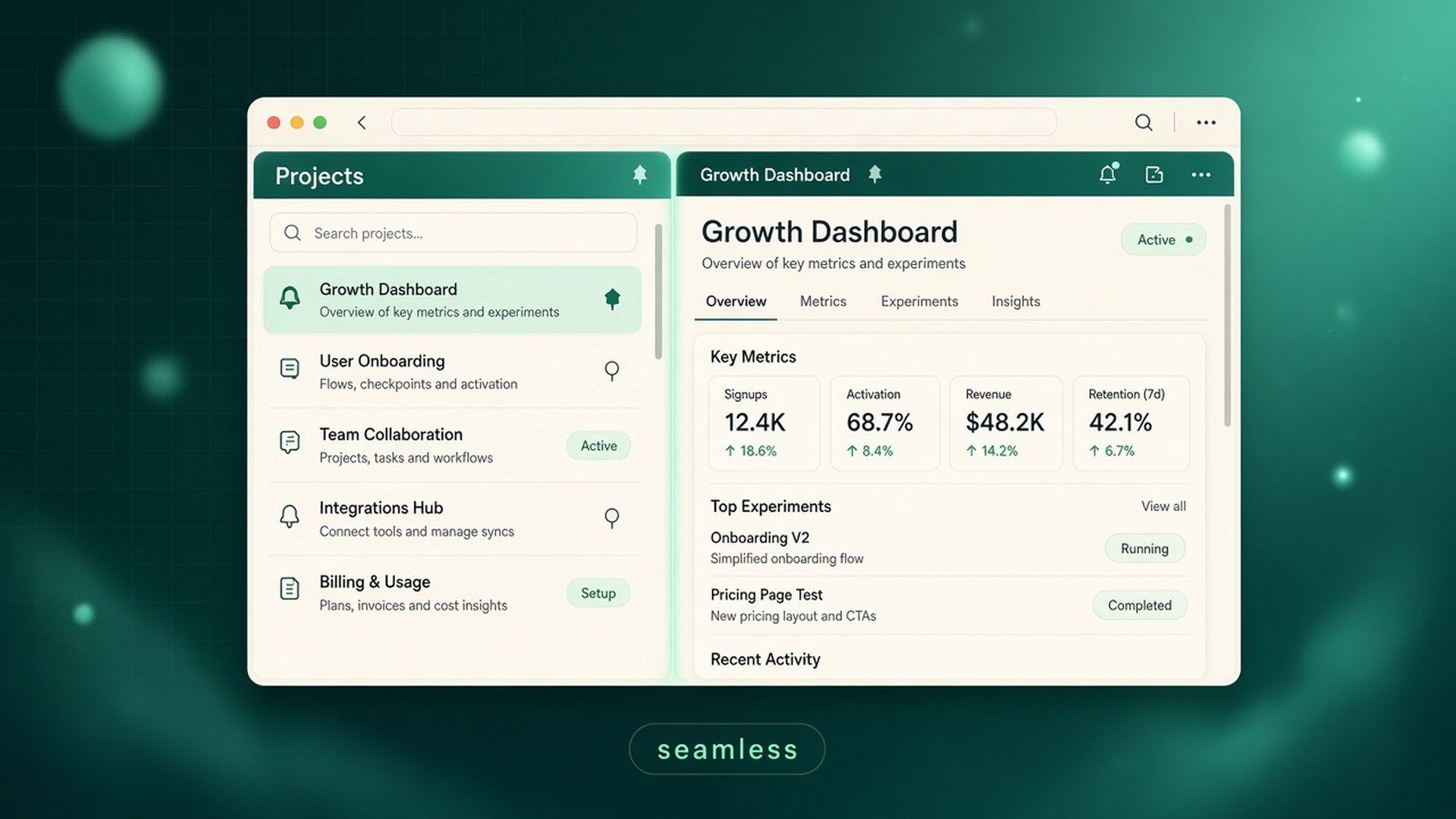
Dual-pane and sticky columns without seams
Job boards, mail apps, docs with a fixed outline, and many dashboards keep one column still while another scrolls. A naive full-page stitch shifts panes, doubles sticky bars, or draws a hairline through the text. Whole Scroll is built for those layouts.
Whole Scroll is a desktop browser extension for full page, region, and element capture, with a built-in editor and on-device OCR. Shots stay local.
What goes wrong on dual-pane pages
Classic full-page tools assume one main scroller. Modern product UI often has two (or more): a list on the left, a detail pane on the right; a folder tree beside a message; a table of contents beside an article. Each pane can scroll on its own. Sticky toolbars may live inside a column rather than across the whole window.
If a capturer only scrolls the documentElement, you get familiar failure modes:
- The quiet column slides or repeats while the active column is stitched.
- A sticky header is photographed twice and appears as a duplicated band.
- Column joins leave a one-pixel line cutting through letters.
- A tall column covers the footer, or a late footer line is cropped.
- A full-screen ad or slide-out is baked into the shot instead of the page behind it.
Those artifacts are especially painful when the screenshot is evidence — a hiring page, a customer ticket, a side-by-side translation, a bug that only appears in the detail pane.
Column-aware capture, in plain language
Whole Scroll treats side-by-side scroll areas as separate regions that are captured and pasted back in place. The other column should not shift while one column is scrolled. Sticky bars inside a column stay in their own place instead of being flattened into a single global strip.
That work shows up in the product release notes as concrete behavior: dual scroll areas captured separately, taller columns pushing the footer down instead of covering it, late footer lines included, sticky bars kept local to their column, overlays hidden so the page behind is captured, and column joins no longer leaving a one-pixel line through the text.
Stable pane vs shifting pane
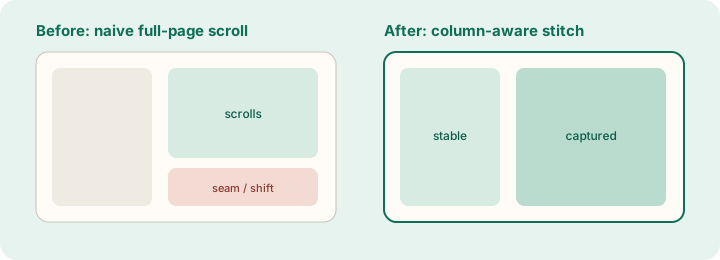
Sticky headers and in-column bars
“Sticky” is not only the site-wide top nav. Inside a dual-pane app you may see:
- A list header that stays while job cards scroll.
- A message toolbar pinned above a long thread.
- A filter chip row that remains while results move.
Whole Scroll aims to keep those bars in the column they belong to. The goal is a screenshot that reads like the UI you used — not a collage where the sticky chrome floats over the wrong content.
Why seams matter
Even a one-pixel misalignment is obvious when it cuts through a word. Cleaner joins matter for OCR later, for PDF searchability, and for trust when you send the shot to someone who was not looking at your screen.
Footers, late lines, and overlays
Long columns often end with legal lines, “load more,” or pagination that only appears after scroll. Whole Scroll’s dual-pane work includes pushing the footer down with a taller column and including a late footer line instead of covering it. Full-screen ads and slide-outs are hidden so the page behind them is what gets captured — useful on media and job sites that interrupt reading.
How to capture a dual-pane page today
- On desktop Chrome or Firefox, open the page and select the item that fills the detail pane (job, thread, document).
- Scroll each pane once if content is lazy-loaded, so both sides have the sections you care about.
- Close cookie walls, coaching popovers, and full-screen promos.
- Click Whole Scroll → Full page, or use Alt+Shift+F.
- In the editor, zoom into the column join and sticky bars. If a pane looks short, recapture after a manual scroll through that pane.
- Export PNG/JPG for chat, or PDF when you want a portable document. Blur secrets before anything leaves your machine.
If you only need one panel, Select region or Select element can be faster than a full-page stitch — especially for a single table or a modal.
Quick checklist before you share
| Check | Why |
|---|---|
| Both panes show the right selection | Detail panes often stay empty until you click a row. |
| No overlay covering the page | You want the UI underneath, not the promo. |
| Sticky bars appear once | Duplicated chrome is a stitch smell. |
| Join has no hairline through text | Safer for reading, OCR, and PDF find. |
| Footer / last line present | Confirms the tall column was fully walked. |
Where dual-pane shows up most
- Job and recruiting sites — list + detail. Select the role first so the right pane is populated.
- Mail and chat — folder/thread lists beside a reading pane.
- Docs and wikis — outline or tree beside the article body.
- Admin dashboards — navigation rails with sticky section headers inside the content column.
- Comparison layouts — two product columns that scroll somewhat independently.
The failure mode is always the same class: one scroller is recorded while the other drifts. Column-aware capture exists so your screenshot matches the mental model of “what I was looking at,” not “what the documentElement happened to do.”
If the shot still looks wrong
- Recapture after a full manual scroll through the active pane.
- Collapse chat widgets and teaching tooltips that inject extra sticky layers.
- Try region capture around a single pane when you do not need the sibling column.
- Email Support with the page address if a site systematically breaks — restricted pages and self-scrolling canvases are called out on the Support page as hard cases.
Why this is a product note, not a generic tip
Generic “how to screenshot Chrome” articles rarely mention dual-pane seams because consumer pages are single-column. Whole Scroll’s release history explicitly invested in side-by-side scroll areas, sticky bars inside columns, footer inclusion, overlay hiding, and cleaner joins. This essay exists so that investment is visible to people who live in split UIs all day.
A mental model for stitch quality
Think of a dual-pane capture as two coordinated recordings that must be composited with alignment. The quiet pane is not “background decoration”; it is content that must remain registered with the active pane’s scroll position. Sticky chrome is local state, not a global watermark to stamp on every slice.
When you review a shot, read it the way a new teammate would: does the left list still correspond to the right detail? Does the sticky filter row belong to the list you see? Is the footer the real end of the column? If any answer is no, fix the page state and capture again before you annotate — markup will not repair a shifted pane.
This is also why dismissing overlays matters. A slide-out drawer is a third layer with its own sticky behavior. Capturing the drawer by accident produces a screenshot that is hard to interpret later, even if the pixels are sharp.
Sharing dual-pane evidence
When the screenshot is evidence, annotate after you confirm alignment. An arrow that points at the wrong row in a shifted list is worse than no arrow. Blur personal names in the quiet pane too — people forget the sidebar still contains PII.
What is free vs Pro
From the live Support page:
- A PNG or JPG you have not edited is free.
- A PDF, or a save after annotate / blur / pixelate / OCR / frame / date / watermark, uses one of 6 free saves.
- You can start a 7-day trial. If you keep it, the standard price is $8 a year. Cancel anytime from the account page; access continues through the time already paid.
Need help with a capture or billing? See Support or email [email protected].
Need a clean shot of a split layout?
Pin Whole Scroll, open both panes, and capture the full page — sticky bars stay in their own place.