 Whole Scroll
- Home
- Tech Column
- Firefox full page
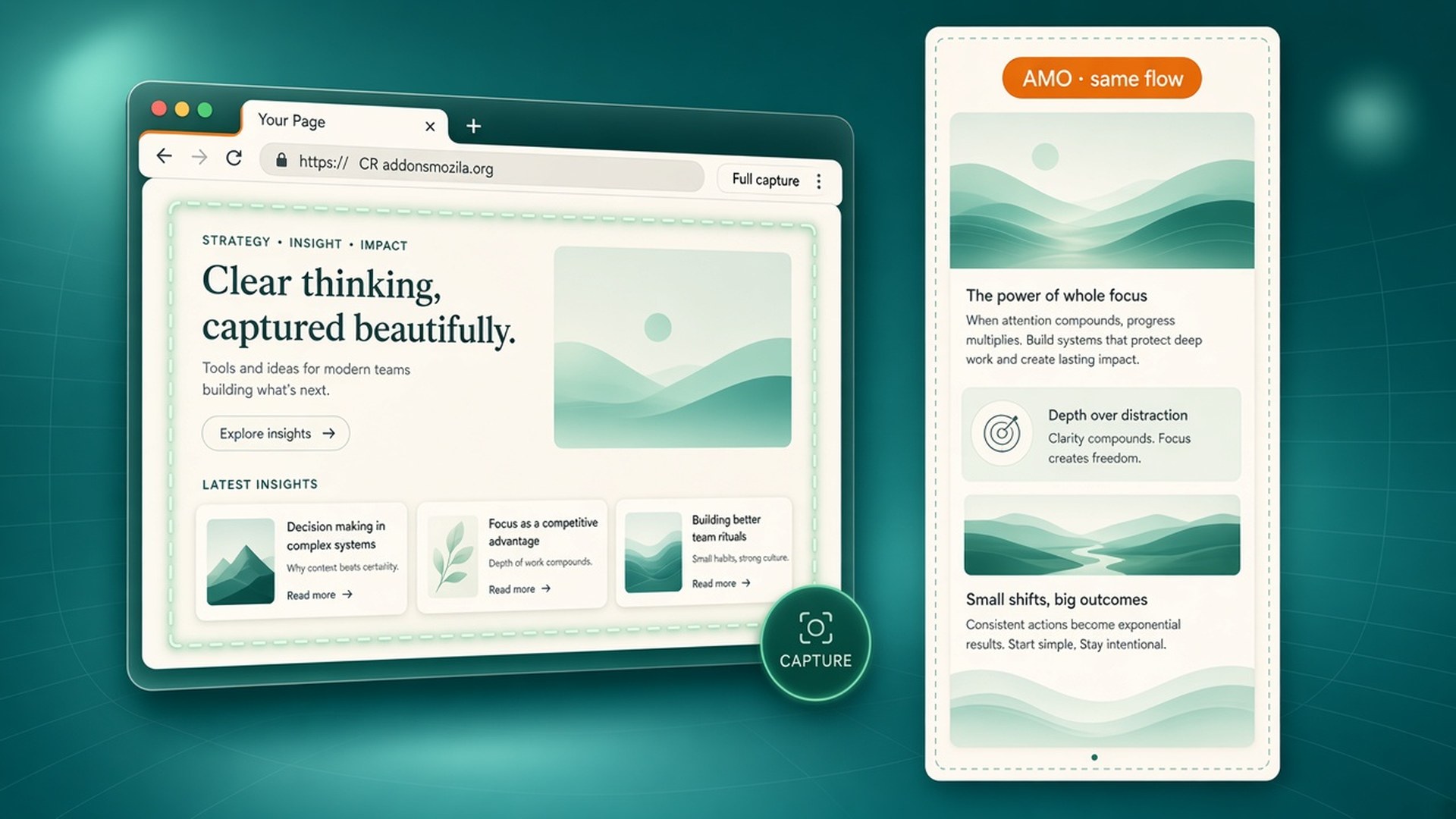
Full-page screenshots in Firefox
If your daily driver is Firefox, you should not need a second screenshot philosophy. Whole Scroll is listed on Firefox Add-ons with the same capture modes, built-in editor, on-device OCR, and local-first exports available on Chrome.
Whole Scroll is a desktop browser extension for full page, region, and element capture, with a built-in editor and on-device OCR. Shots stay local.
Why use an extension on Firefox
Firefox includes helpful screenshot tools for many everyday crops. Long, dynamic pages — sticky apps, dual-pane boards, lazy marketing sites — still benefit from a dedicated capturer that stitches carefully, opens an editor immediately, and can export a searchable PDF or run local OCR.
Whole Scroll is built as a desktop browser extension. It is not a mobile app. On Firefox it targets the same jobs as on Chrome: full page, visible area, delayed shot, region, and element capture, with markup and exports that stay on your computer unless you download a file.
Install from Firefox Add-ons
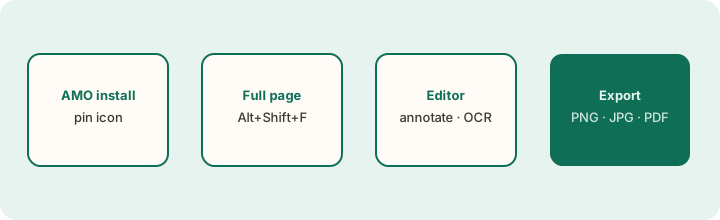
- Open the Whole Scroll listing on Firefox Add-ons (AMO).
- Add the extension, then pin Whole Scroll to the toolbar so the icon stays visible.
- Optional: review shortcuts in Firefox’s extension shortcuts settings. The product default for full page is Alt+Shift+F (same mnemonic as Chrome).
The Firefox workflow at a glance
Capture modes that match Chrome
| Mode | Use it when |
|---|---|
| Full page | You want the entire scroll as one tall image. |
| Visible area | Only the current viewport matters. |
| Delayed shot (~3s) | A menu, tooltip, or hover card must open first. |
| Select region | You drag a custom box. |
| Select element | You click a heading, image, or block. |
Before a full-page run on lazy sites, scroll once so deferred sections load. Return to the top, then capture. Taking a screenshot does not upload the page or the image; History keeps the latest 30 shots in this browser.
Editor, OCR, and export
When the stitch finishes, the built-in editor opens with the capture:
- Annotate — highlights, notes, emoji, arrows, step numbers, shapes.
- Blur / pixelate — hide secrets before you share.
- Frame / date / address — optional chrome around the shot.
- Recognize selection — on-device OCR in 12 languages; text stays on this computer.
- Export — PNG, JPG, or PDF. When the page provides text and links, PDF options can keep them searchable and clickable.
The editor fits tall images on screen; zoom to inspect seams. The downloaded file is the full capture, not the fit-to-screen preview.
Firefox-specific tips
- Permissions. If a capture looks empty, confirm the extension may access the site (Firefox permission prompts can be stricter on first use).
- Pinned icon. Without a pin, it is easy to lose the entry point inside the extensions puzzle menu.
- Hard pages. Browser-internal pages and some store pages cannot be read by extensions — the same class of limitation called out on Support for Chrome.
- Dual-pane layouts. Use the same patience you would on Chrome: select the detail item, dismiss overlays, then full-page capture. See the dual-pane column essay for the layout rationale.
Chrome and Firefox together
Teams often standardize docs on one browser while individuals prefer another. Whole Scroll’s public listings cover both Chrome Web Store and Firefox Add-ons, so a playbook written for “full page → annotate → PDF” can stay browser-agnostic. History and saves remain local to each browser profile — they are not a cloud library sync.
Feature parity you can rely on
On Firefox you still get the capture menu modes, the built-in editor, on-device OCR in 12 languages, History for recent shots, and PNG/JPG/PDF export. Dual-pane and sticky-column improvements described in the Tech Column apply to the desktop extension workflow generally — verify on the sites you care about, the same as you would on Chrome.
Store listings differ (AMO vs Chrome Web Store), and review timing can differ between stores, but the product intent is one workflow documented in English on wholescroll.com.
Teams that standardize on Firefox
Some engineering cultures default to Firefox for privacy tooling. Whole Scroll’s local-first messaging — shots stay on this computer; OCR runs in the browser — fits that culture. Install from AMO, pin the icon, and keep the same playbook: full page for documents, delayed shot for menus, blur before anything leaves the machine.
Moving a playbook from Chrome
- Replace the store URL in your internal doc with the AMO link.
- Keep Alt+Shift+F as the shared mnemonic; confirm it on each machine’s shortcut settings.
- Remind people that History does not sync across browsers — recapture or transfer files deliberately.
- Point newcomers at Support for free vs Pro rules; they are the same product terms.
Troubleshooting on Firefox
- Icon missing — open the extensions menu and pin Whole Scroll.
- Shortcut does nothing — check for conflicts in Firefox extension shortcuts; reassign if another add-on stole Alt+Shift+F.
- Blank or short capture — scroll to load content, dismiss overlays, retry. Some internal Firefox pages cannot be read by extensions at all.
- Editor looks tiny — zoom; the download remains full resolution.
- OCR will not start — reload the add-on from
about:addonsand try Recognize selection again.
When you write internal docs, link both this Firefox essay and the Chrome essay so people can land on the browser they actually use. The Column index keeps both cards side by side for that reason.
Reading the AMO listing with the site
The Firefox Add-ons listing is the install door; wholescroll.com is the evergreen explanation. Use AMO to add the extension and check the publicly shipped version. Use Tech Column essays for workflows that should not rot inside a store description — dual-pane capture, searchable PDF, OCR privacy, and editor one-pass markup.
If you maintain an internal software catalog, store both URLs: the AMO install link and /column for how-tos. New hires then get a browser-accurate path without inventing steps from memory.
What is free vs Pro
From the live Support page:
- A PNG or JPG you have not edited is free.
- A PDF, or a save after annotate / blur / pixelate / OCR / frame / date / watermark, uses one of 6 free saves.
- You can start a 7-day trial. If you keep it, the standard price is $8 a year. Cancel anytime from the account page; access continues through the time already paid.
Need help with a capture or billing? See Support or email [email protected].
Why Firefox users care about parity
Teams standardize on Firefox for stricter tracking protection, enterprise policies, or personal preference. Screenshot tools that only ship for Chromium force a browser switch mid-task — open the page in Chrome, capture, then return. That context switch is where details get lost and where private pages get duplicated into another profile.
Whole Scroll on Firefox Add-ons is meant to keep the same habit: capture, annotate, OCR, and export without leaving the tab. Shortcuts and editor tools follow the same mental model as the Chrome build so documentation and internal playbooks stay shared across the team.
Install and first capture on Firefox
- Open the listing on Firefox Add-ons and add Whole Scroll.
- Pin the toolbar button if you want one-click access beside the address bar.
- Open a tall page, choose Full page (or Screen / Region / Element), and start the capture.
- Review the stitch in the editor, then annotate or run OCR before you download.
If a site uses aggressive sticky chrome or dual scroll columns, prefer a recent Whole Scroll build — release notes call out dual-pane and sticky-rail fixes that apply on both browsers.
Permissions and what stays local
Firefox will show the permission prompts the extension needs to read the active tab for capture. That access is for stitching the page you asked to shoot. Taking a screenshot does not upload the page or the image; on-device OCR likewise keeps recognition on this computer. Review the product privacy page if you need the short version of that promise for a security review.
When to use Region or Element instead of Full page
Full page is ideal for documentation and bug reports that need the whole scroll. Use Region when only a chart or form matters, and Element when a single card or modal should be isolated without the rest of the layout. The editor and export paths are the same afterward — only the capture bounds change — so Firefox workflows stay consistent with Chrome playbooks.
On Firefox today?
Install Whole Scroll from AMO, pin the icon, and capture the next long page as one tall image.