 Whole Scroll
- Home
- Tech Column
- Searchable PDF
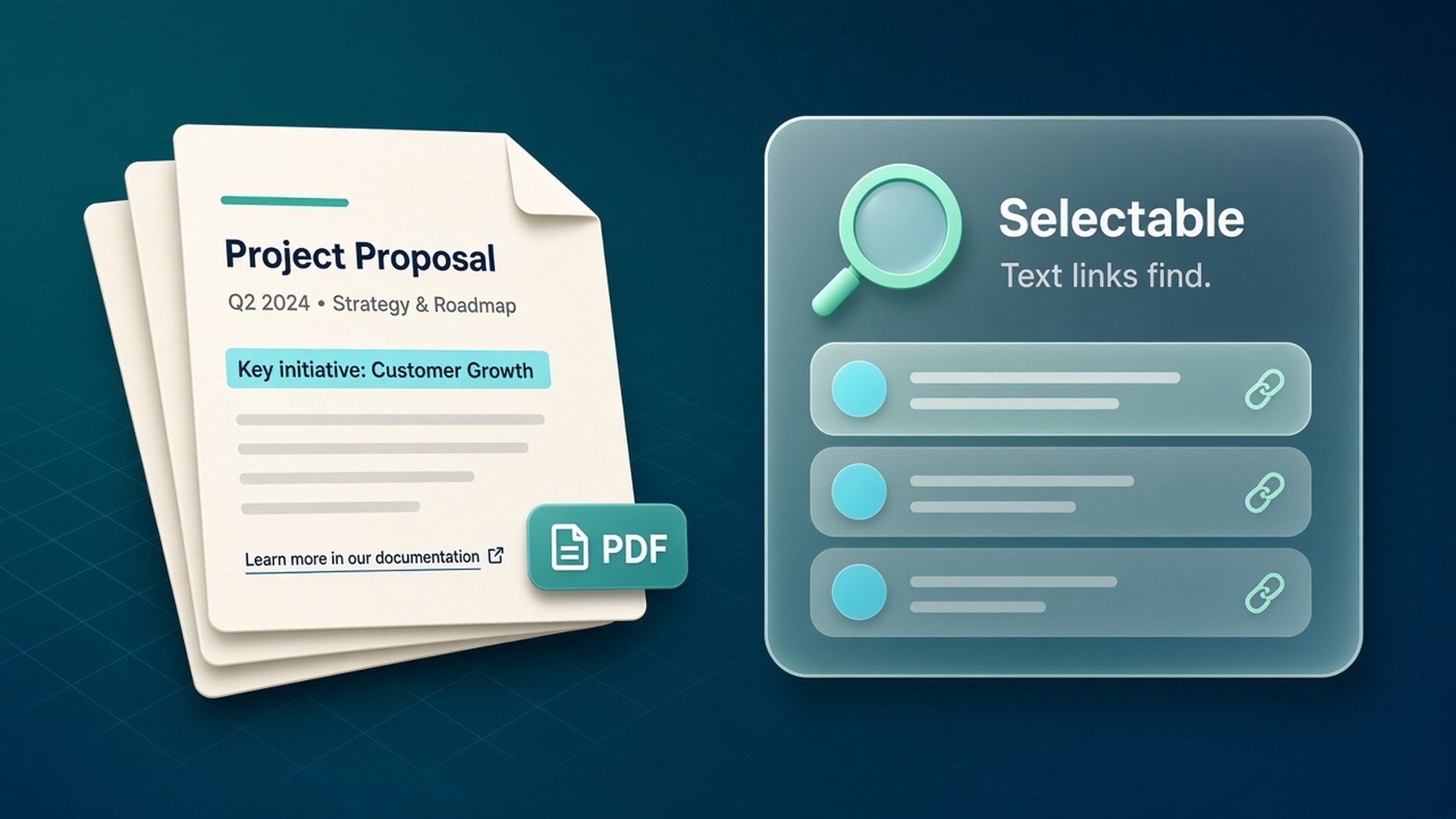
Searchable PDF from a full-page capture
A tall PNG is perfect for chat and tickets. When you need Find-in-document, copyable paragraphs, or clickable links inside one portable file, export the same capture as a searchable PDF.
Whole Scroll is a desktop browser extension for full page, region, and element capture, with a built-in editor and on-device OCR. Shots stay local.
Why a searchable PDF beats an image-only export
A full-page screenshot already solves the hard part: one continuous picture of a long document. Sharing that picture as PNG or JPG is still the right move for Slack, a bug ticket, or a design review. A PDF becomes useful when the recipient needs to work inside the file.
- Find text — jump to an order number, a clause, or a heading without scrolling the entire image.
- Copy a paragraph — quote the page accurately instead of retyping from pixels.
- Keep links — when the capture can carry them, a clickable URL beats a static underline in a PNG.
- Email as one attachment — many teams still prefer PDF for receipts, proposals, and compliance packs.
Whole Scroll keeps the capture local. Taking a screenshot does not upload the page or the image. You decide later whether the download should be a raster image or a PDF.
How Whole Scroll builds the PDF
The extension first scrolls and stitches a full-page image (or uses a smaller mode if you chose region / element / visible area). That image opens in the built-in editor beside the tab. From there you can mark it up, blur private bits, run on-device OCR, or export immediately.
When you choose PDF, Whole Scroll packages the tall capture into a portable document. When the page provides text and links, the PDF options can keep searchable text and clickable links with the shot — so the export is more than a flat picture glued into a PDF wrapper.
From stitch to selectable text
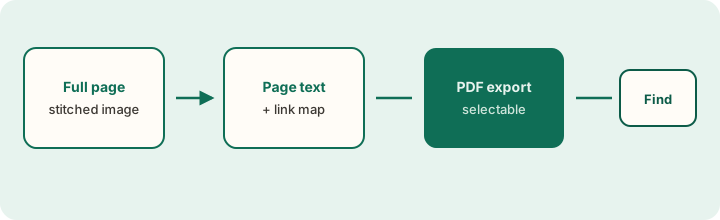
Step-by-step: capture, then export PDF
- Install Whole Scroll from the Chrome Web Store or Firefox Add-ons, then pin the icon.
- Open the desktop page you want. If content loads as you scroll, walk the page once so lazy sections appear, then return to the top.
- Choose Full page (or press Alt+Shift+F). Wait for the stitch to finish; the editor opens with the tall image.
- Optional: annotate, blur, or frame the shot before export if the shared PDF should already include markup.
- Download as PDF. Prefer PNG/JPG only when the destination is chat or an image-first tool.
Other capture modes still export to PDF when you need a smaller composition: visible area, delayed shot (about 3 seconds for menus), select region, or select element.
When text and links are preserved
| Situation | What to expect |
|---|---|
| Ordinary HTML page with real text nodes | PDF options can keep searchable text and clickable links with the capture. |
| Text drawn only as images / canvas | The PDF still contains the picture; use Recognize selection (on-device OCR) if you need to copy words from pixels. |
| Restricted pages (browser settings, store pages) | Extensions cannot always read the page. Capture may be incomplete — see Support tips. |
| Returning from History | Searchable PDF text can stay with the shot so you can export again without recapturing. |
This is different from “cloud OCR into a PDF.” Whole Scroll’s PDF path leans on what the page already exposes locally. OCR is a separate editor tool that also runs in the browser and does not send the page away.
Practical uses
Design and product reviews
Export a long marketing page or a settings screen as PDF so reviewers can search for a string, leave comments in their PDF tool, and keep one attachment in the thread.
Invoices, receipts, and account pages
A searchable export makes it easier to find amounts and IDs later. Blur card fragments or personal fields in the editor first if the PDF will leave your machine.
Archives and handoffs
When a live URL may change, a dated full-page PDF is a durable snapshot. Pair it with the page address and date frame in the editor if you want the provenance baked into the file.
Tips for clean PDF exports
- Load lazy content first. Incomplete captures make incomplete PDFs. Scroll once, then capture.
- Dismiss modals. A full-screen promo can hide the page you meant to archive.
- Prefer annotate-before-export for shared files. Markup in Whole Scroll means recipients do not need your editor.
- Use OCR for image-only text. Drag a box with Recognize selection; recognition stays on this computer.
- Remember the free/Pro gate. PDF export uses one of the free Pro saves (details below).
End-to-end examples
Hand a long pricing page to finance
Marketing ships a new pricing URL every quarter. Finance needs a durable copy with searchable plan names. Capture the full page after dismissing the cookie banner, add the page address and date in the editor if you want provenance on the file, then export PDF. When someone asks “did Pro include OCR in November?”, Find-in-document answers in seconds.
Attach evidence to a support ticket
Support tools often compress images aggressively. A PDF keeps layout readable and, when text is preserved, lets the agent search for the exact error string you saw. Blur account IDs in the editor before export if the ticket leaves your organization.
Archive a policy page before it changes
Terms, shipping rules, and fare footnotes change without ceremony. A dated full-page PDF is a quiet insurance policy. Keep the PNG only if you also need a pixel-perfect crop for social — the PDF is the archive.
Quality checklist for searchable exports
- Confirm the stitch reached the true footer; a short capture means a short PDF.
- Prefer exporting before heavy decorative frames if you care about text selection near the edges.
- If a block is image-only, run Recognize selection and paste the text into your notes in addition to the PDF.
- Name the download meaningfully (
pricing-2026-11-04.pdf) so archives stay navigable. - Remember PDF uses a Pro save slot even when the picture looks “unedited.”
FAQ
Is every PDF automatically searchable?
No. Searchability depends on the page providing text (and links, when you keep them). Image-only content remains pictorial unless you OCR separately.
Does exporting PDF upload my shot?
Whole Scroll keeps captures local; taking a screenshot does not upload the page or image. You download the PDF to your machine like any other save.
Can I re-export from History?
Yes. Searchable PDF text can stay with the shot when you return from History, so you are not forced to recapture for another export.
PNG vs JPG vs searchable PDF
Choose the format for the destination, not for habit. Chat tools and issue trackers preview PNG/JPG instantly. Legal, finance, and email threads often prefer PDF because it feels like a document, paginates predictably in viewers, and — when text is preserved — supports Find and copy. Whole Scroll lets you capture once and decide at export time.
If you need both, export twice from the same editor session or from History: a PNG for the Slack thread and a PDF for the archive folder. That is still cheaper than recapturing the live page after it changes.
For image-only regions inside an otherwise textual page, keep the searchable PDF for the HTML text and use on-device OCR for the stubborn graphic. The two features complement each other rather than compete.
What is free vs Pro
From the live Support page:
- A PNG or JPG you have not edited is free.
- A PDF, or a save after annotate / blur / pixelate / OCR / frame / date / watermark, uses one of 6 free saves.
- You can start a 7-day trial. If you keep it, the standard price is $8 a year. Cancel anytime from the account page; access continues through the time already paid.
Need help with a capture or billing? See Support or email [email protected].
Ready for a portable, searchable page?
Capture the full page once, then export PNG for chat or PDF when you need Find and selectable text.