 Whole Scroll
- Home
- Tech Column
- Full page screenshot
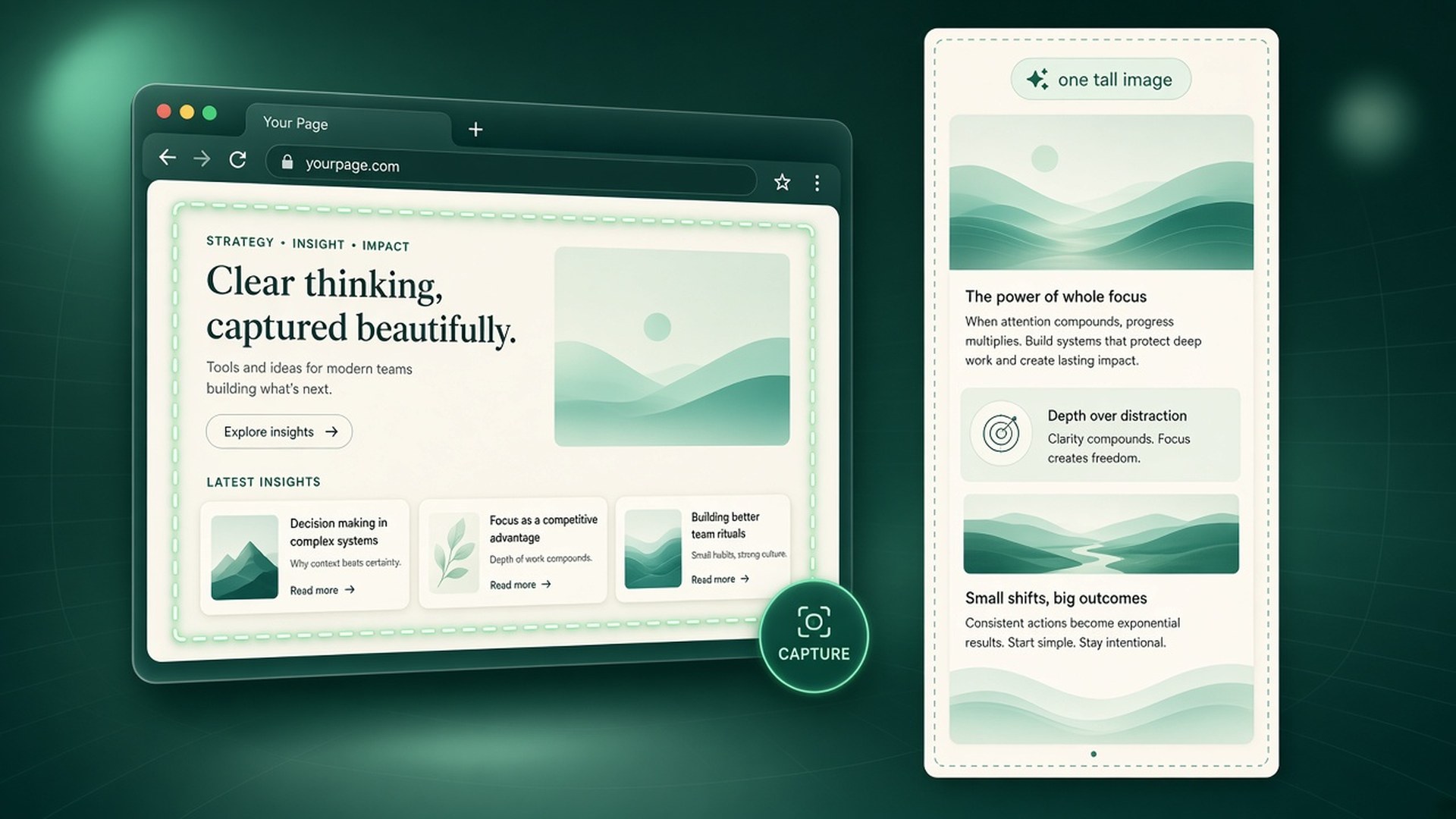
How to take a full page screenshot in Chrome
Chrome’s built-in tools are great for what you can see on screen. When the page is longer than the viewport — a docs page, a receipt, a chat thread, a pricing table — you usually want one tall image (or a searchable PDF) instead of a stack of crops.
Whole Scroll is a desktop browser extension for full page, region, and element capture, with a built-in editor and on-device OCR. Shots stay local.
Why a full page shot beats Print Screen
A normal screenshot only covers the visible viewport. For a long page you either scroll and stitch by hand, or you ask the browser to scroll and compose one image. Whole Scroll does the second: it scrolls the page, stitches the views, and opens the result in an editor beside the tab.
- One file for the whole scroll — useful for bug reports, design reviews, invoices, and archives.
- Markup without a round-trip — arrows, steps, blur, and frames sit on the shot before you download.
- Optional searchable PDF — keep a portable document when an image alone is not enough.
- On-device OCR — read text from the image in the browser; the picture and recognized text stay on this computer.
The Chrome workflow at a glance
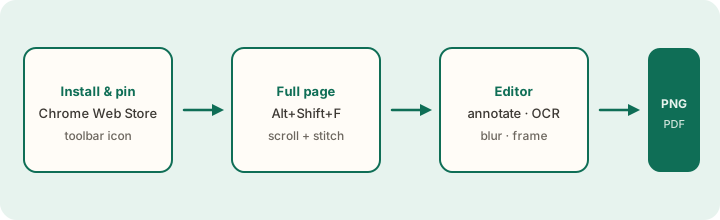
Install and pin Whole Scroll
- Open the Chrome Web Store listing (or the Firefox Add-ons page) and add the extension.
- Click the puzzle piece on the toolbar, find Whole Scroll, and pin it so the icon stays visible.
- Optional: set or confirm the shortcut at
chrome://extensions/shortcuts. The default for full page is Alt+Shift+F.
Pinning matters more than it sounds. Without a visible icon, people bury the extension inside the puzzle menu and lose the habit. The shortcut keeps the workflow muscle-memory even when the toolbar is crowded.
Capture the full page
- Open the page you want on desktop Chrome (or Firefox).
- If the page loads content as you scroll, scroll once from top to bottom so lazy sections have a chance to appear, then return to the top.
- Click the Whole Scroll icon and choose Full page, or press Alt+Shift+F.
- Wait while the extension scrolls and stitches. When it finishes, the built-in editor opens with the tall image.
Taking a screenshot does not upload the page or the image. The latest shots stay in this browser on this computer (History keeps the most recent 30). A file you download goes to your downloads folder.
How stitching turns viewports into one image
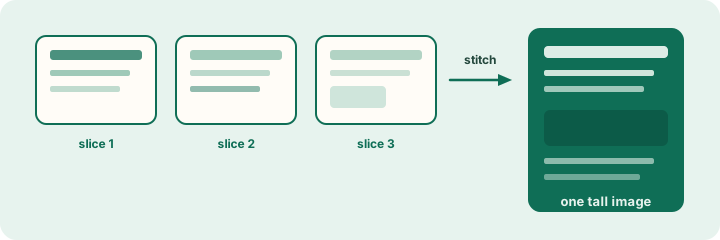
That stitch is what separates a dedicated full-page tool from Print Screen. You are not assembling a collage by hand, and you are not limited to what fits on one monitor. Sticky headers and dual-pane layouts still deserve care — see the tips below and the dual-pane column essay — but the default path is: scroll, compose, open the editor.
Other capture modes
Full page is the default for long documents. Use a smaller mode when you only need part of the UI:
| Mode | Use it when |
|---|---|
| Full page | You want the entire scroll as one tall image. |
| Visible area / this screen | Only the current viewport matters. |
| Delayed shot (~3s) | A menu, tooltip, or hover card must open first. |
| Select region | You drag a custom box. |
| Select element | You click a heading, image, or block. |
All of these modes open the same editor afterward. The capture bounds change; annotate, blur, OCR, and export stay consistent.
Annotate, blur, and OCR
In the editor you can highlight a line, write a note, place an emoji, add an arrow or step number, draw a shape, or blur / pixelate a detail. You can also frame the shot as a macOS or Windows window and optionally show the page address and the date.
Choose Recognize selection, drag a box over the words you need, and let recognition run in the browser. Whole Scroll supports OCR in 12 languages. The picture and the recognized text stay on this computer — recognition does not send the page to a remote OCR service as part of taking the shot.
Export PNG, JPG, or PDF
| Format | Fit |
|---|---|
| PNG | Sharp UI shots for tickets, design tools, lossless markup. |
| JPG | Smaller files for chat when mild compression is fine. |
| Email and archives; can keep searchable text/links when the page provides them. |
An unedited PNG or JPG download is free. A PDF, or a save after you annotate, blur, pixelate, recognize text, or add a frame / date / watermark, uses one of the free Pro saves described on Support.
Practical uses
Bug reports and QA
Attach one tall PNG that shows the broken state in context — header, form, and footer — instead of a thread of cropped viewport shots. Add step numbers in the editor so the engineer does not need a separate walkthrough.
Design and product reviews
Capture a long marketing page or settings screen, highlight the component under discussion, and export once. Prefer PNG when hairline icons matter; PDF when reviewers want Find-in-document.
Invoices, receipts, and archives
A dated full-page PDF is a durable snapshot when a live URL may change. Blur card fragments or personal fields in the editor first if the file will leave your machine.
Tips for hard pages
- Incomplete or short captures. Chrome does not let extensions read some pages (browser settings, the Chrome Web Store itself). A page that scrolls itself, or a PDF opened in the browser, can also come out short. Scroll once to load content, then capture again. If it is still wrong, email the page address to support.
- Sticky headers and dual columns. Modern sites often keep a sidebar or header fixed while the main column scrolls. Whole Scroll is built to keep sticky bars in place and to capture side-by-side scroll areas without shifting the other column — still, a second try after dismissing a full-screen modal helps. See the dual-pane essay for the layout rationale.
- Menus and hover UI. Use Delayed shot, or open the menu first, then capture region / element.
- Privacy. Blur or pixelate secrets before you share the download. History lives in this browser; clearing site data for the extension removes stored shots.
- Lazy media. If carousels or below-the-fold charts stay blank, scroll them into view once before Full page so the stitch has real pixels to keep.
Troubleshooting
- Icon missing — open the extensions puzzle menu and pin Whole Scroll.
- Shortcut does nothing — check for conflicts at
chrome://extensions/shortcuts; reassign if another extension stole Alt+Shift+F. - Blank or short capture — scroll to load content, dismiss overlays, retry. Some internal Chrome pages cannot be read by extensions at all.
- Editor looks tiny — zoom; the download remains full resolution.
- OCR will not start — reload the extension from
chrome://extensionsand try Recognize selection again.
When you write internal docs, link both this Chrome essay and the Firefox essay so people can land on the browser they actually use.
A reliable first-capture checklist
- Install from the Chrome Web Store and pin the icon.
- Confirm Alt+Shift+F (or your preferred shortcut).
- Load lazy content once; return to the top.
- Capture Full page; wait for the editor.
- Blur secrets, then annotate what matters.
- Export PNG for chat, or PDF when you need a document-style handoff.
That sequence is the same playbook the rest of the Tech Column assumes — searchable PDF, on-device OCR, and one-pass annotate/blur essays all start from a clean full-page capture.
What is free vs Pro
From the live Support page:
- A PNG or JPG you have not edited is free.
- A PDF, or a save after annotate / blur / pixelate / OCR / frame / date / watermark, uses one of 6 free saves.
- You can start a 7-day trial. If you keep it, the standard price is $8 a year. Cancel anytime from the account page; access continues through the time already paid.
Need help with a capture or billing? See Support or email [email protected].
Ready to capture the whole page?
Install Whole Scroll on desktop Chrome or Firefox, pin the icon, and press Alt+Shift+F on your next long page.