 Whole Scroll
- Home
- Tech Column
- On-device OCR
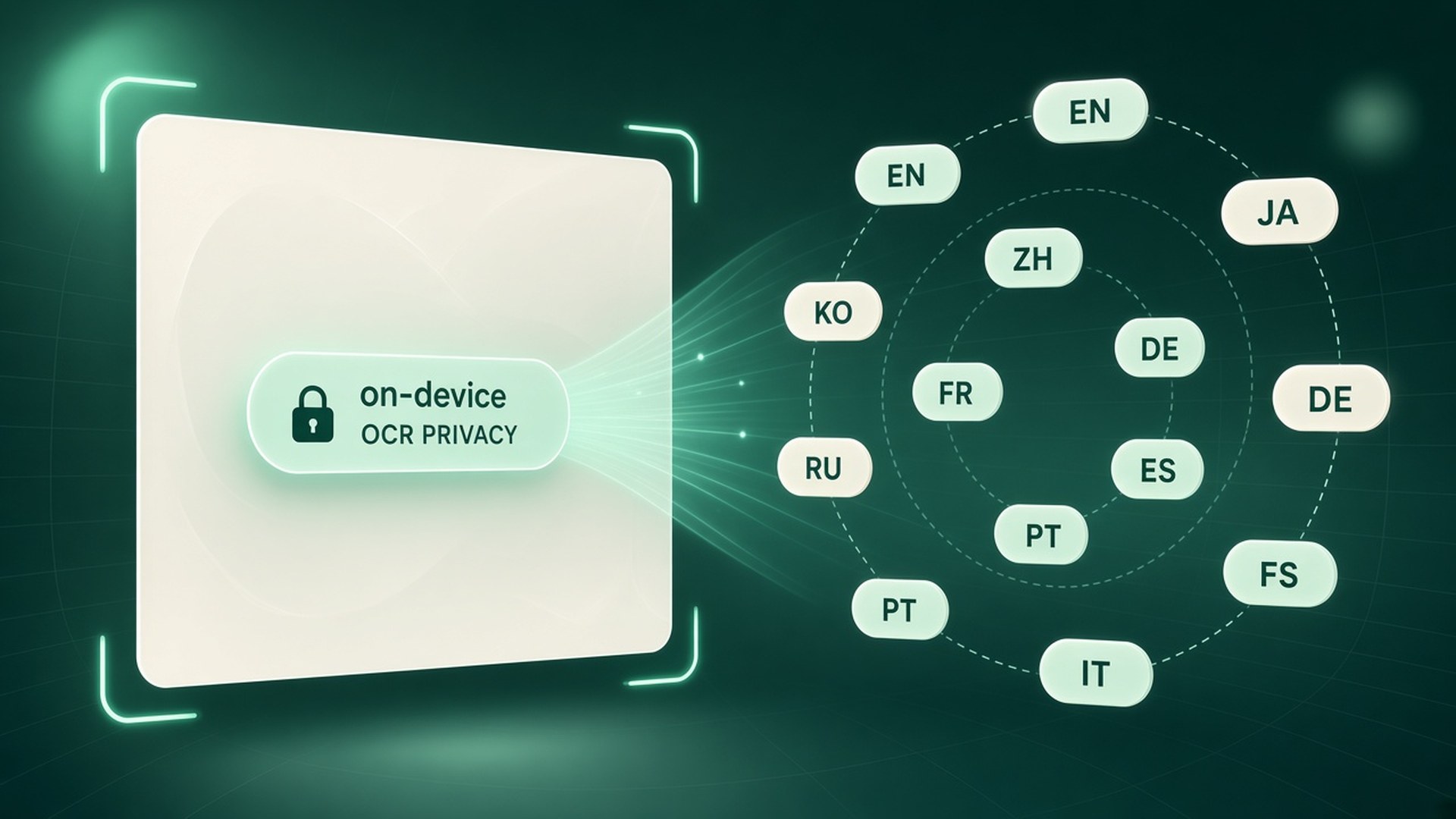
On-device OCR in 12 languages
Sometimes the words you need are locked in the image: a chart label, a scanned PDF opened in the browser, a UI string you cannot select. Whole Scroll can read a region on this computer — in 12 languages — without sending the page to a remote OCR service.
Whole Scroll is a desktop browser extension for full page, region, and element capture, with a built-in editor and on-device OCR. Shots stay local.
Why local OCR belongs next to the capture
Full-page screenshots are visual proof. OCR is how you pull words out of that proof without retyping. Putting recognition in the same editor where you blur, annotate, and export means you do not bounce through a separate upload site just to copy a heading.
Whole Scroll’s Support page states the rule plainly: Recognize selection reads the words inside a box you drag. Recognition runs in the browser. The picture and the recognized text stay on this computer.
- Grab a total from a dashboard tile that blocks selection.
- Copy UI copy from a mock that lives only as pixels.
- Read a label on a chart before you file a bug.
- Translate workflow: capture → OCR → paste into your own notes (still local until you paste elsewhere).
The 12 languages
Marketing and product copy describe on-device OCR in 12 languages. Those match the locales Whole Scroll ships for the product UI:
| Language | Locale tag |
|---|---|
| English | en |
| Chinese (Simplified) | zh-CN |
| Chinese (Traditional) | zh-TW |
| Japanese | ja |
| Korean | ko |
| Spanish | es |
| French | fr |
| German | de |
| Portuguese (Brazil) | pt-BR |
| Italian | it |
| Polish | pl |
| Dutch | nl |
You do not need a separate “OCR cloud account.” The recognizer runs with the extension on your desktop browser.
Pixels in, text out — on this computer
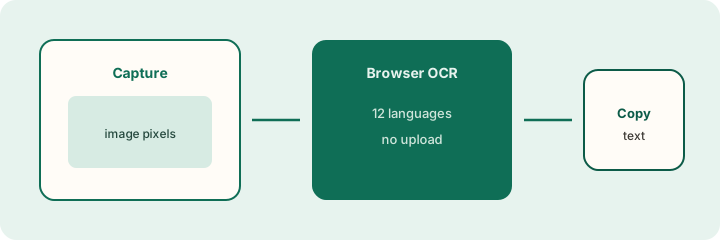
How to run Recognize selection
- Capture with Whole Scroll (full page, visible area, region, element, or delayed shot), or open a recent shot from History.
- In the editor, choose Recognize selection (region recognize). You can also use recognize-all when you want a wider pass.
- Drag a tight box around the words. Confirm when prompted.
- Wait for the on-device engine to finish. Copy from the result panel.
Privacy: what stays local
Whole Scroll’s home and Support messaging agree on the privacy model:
- Taking a screenshot does not upload the page or the image.
- OCR recognition runs in the browser; picture and text stay on this computer.
- History lives in this browser (latest 30). Clearing the extension’s site data removes stored shots.
If you later paste OCR output into a chat tool or ticket, that paste is outside Whole Scroll — the recognition step itself did not require a remote OCR upload.
OCR vs searchable PDF
These features solve different jobs:
| Feature | Best when |
|---|---|
| Searchable PDF export | The HTML page already exposes text/links and you want Find inside a portable file. |
| On-device OCR | The words exist only as pixels (images, canvas, screenshots of screenshots). |
You can use both on the same capture: export a PDF for the archive, and OCR a stubborn label you still need in your clipboard.
Getting a clean read
- Crop tight. Extra icons and charts add noise.
- Zoom first. The editor fits tall shots on screen; zoom so the glyphs are sharp before recognizing.
- Watch contrast. Light gray on white is harder than high-contrast UI text.
- One language block at a time when a screen mixes scripts heavily.
- If language data fails to load, reload the extension and try again (the editor surfaces that recovery hint).
Everyday OCR use cases
- Bug reports — copy the exact toast message even when the UI blocks selection.
- Localization checks — capture a screen in Japanese or Korean and pull strings for a spreadsheet without retyping.
- Receipts and statements — grab amounts from image-heavy statements, then blur the rest before sharing the PNG.
- Design QA — extract microcopy from a raster export your designer dropped into the browser.
- Research notes — keep the visual proof as a shot and the quote as text in your notebook.
Honest limits
On-device OCR is strong on clear UI type and ordinary body text. It is weaker on decorative lettering, heavy compression, tiny footnotes, and handwriting. Whole Scroll does not claim cloud-grade document digitization — it claims private, convenient recognition next to the capture you already took.
If recognition fails to start, reload the extension. If a language pack message appears, try again after reload. Extremely large full-page images may be easier to OCR after you zoom to the region of interest rather than recognizing the entire scroll at once.
Security notes for teams
Because recognition stays in the browser, OCR is compatible with “no upload” screenshot policies common in finance and healthcare teams — with the usual caveat that a downloaded file or a paste into another app leaves the local boundary. Pair OCR with blur when the surrounding pixels are sensitive even if you only needed one sentence.
Suggested workflow
- Capture the visual proof you may need later (full page or region).
- Blur anything that should never be copied into notes by mistake.
- Run Recognize selection on the phrase you need.
- Paste into your editor or ticket.
- Export the annotated image or PDF if the visual still matters.
Working in that order prevents a common accident: OCR copies a secret into the clipboard, then you paste into a public channel. Redact first when the region is mixed.
For multilingual pages, recognize one script block at a time. A dense mix of Latin and CJK in a single box is harder than two tight passes. The 12-language coverage is there so you can stay inside Whole Scroll for the locales the product already localizes — not so a single box magically perfects every world language.
What “on-device” means technically (short)
Whole Scroll runs recognition inside the desktop browser session with the extension’s local OCR components. You are not opening a website that asks you to upload a PNG to a third-party recognizer. Support’s wording is the product promise: recognition runs in the browser; the picture and the recognized text stay on this computer.
That design keeps OCR adjacent to blur and export. Teams evaluating screenshot tools for privacy reviews can read Support and this essay together: capture does not upload; OCR does not send the page away; History is local; downloads are under the user’s control.
What is free vs Pro
From the live Support page:
- A PNG or JPG you have not edited is free.
- A PDF, or a save after annotate / blur / pixelate / OCR / frame / date / watermark, uses one of 6 free saves.
- You can start a 7-day trial. If you keep it, the standard price is $8 a year. Cancel anytime from the account page; access continues through the time already paid.
Need help with a capture or billing? See Support or email [email protected].
What “on-device” changes about the workflow
Cloud OCR is convenient when you already send the image somewhere for storage. Full-page screenshots are different: the file is often a private receipt, a draft contract, a customer ticket, or an internal dashboard. Uploading that image just to recover the words creates a second copy of sensitive material you did not need to create.
Local OCR flips the default. The capture stays in the editor; recognition runs against the pixels already on this computer; the text you copy into a ticket or spreadsheet never had to leave the machine. That is why Whole Scroll pairs OCR with the same privacy promise as capture: the page and the image are not uploaded to take the shot or to read the text from it.
Choosing a language without guessing the page
Mixed-language pages are common — an English SaaS UI with Japanese product copy, or a bilingual support article. Pick the language that matches the text you care about most for that pass. If the first pass misses a block, change the language and run again on the same capture; you do not need to re-scroll the site.
For CJK text, prefer the matching locale (Simplified vs Traditional Chinese, Japanese, or Korean) rather than English. Latin-script languages share more glyphs, so Spanish, French, German, Portuguese (Brazil), Italian, Polish, and Dutch tend to tolerate small mismatches better, but accuracy still improves when the selected language matches the page.
Quality tips that beat “zoom and hope”
- Capture at a comfortable zoom so letters are sharp, not pixel-smoothed.
- Prefer Full page or Element over a tiny Region when the text spans a card or table.
- Hide overlapping chat widgets before capture if they cover the lines you need.
- Use blur or pixelate only after you have copied the OCR text you need — mosaic destroys glyphs.
- If a font is ultra-thin or heavily antialiased, a second pass at a larger viewport width often helps.
Where OCR fits beside searchable PDF
Searchable PDF keeps text when the page itself exposes it. OCR recovers text from pixels when the page is a canvas, a scanned image, or a screenshot of a screenshot. Many workflows use both: export a searchable PDF for the live document, and run OCR on a region that was never real text in the DOM. Neither step requires sending the image to a remote recognizer.
Need text from a picture — privately?
Capture the page, run Recognize selection, and copy the words. Recognition stays in the browser.